

 5 MYSTERY GIFTS


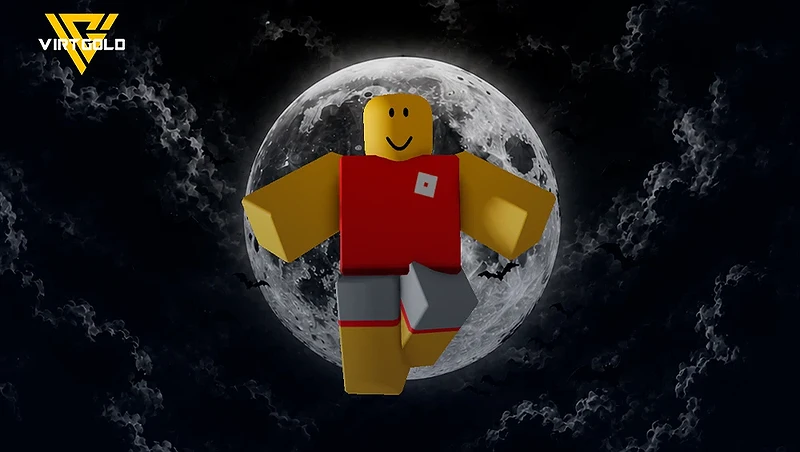
Want to completely change the way your Roblox avatar looks and moves? There are several animation packs and accessories that let you create some seriously wild setups from carrying a mini version of yourself to flying with Jet Boosters, giving yourself four arms, walking around as a tornado, or even turning your avatar into a fighter plane.
In this guide, we’ll break down each setup, what items you need, and how to combine the animations and accessories so they actually work together.
Catalog Avatar Creator
To find and test Roblox avatar animations more easily, jump into Catalog Avatar Creator. It lets you quickly browse, equip, and test different animations and avatar items before spending your Robux.
This makes it much easier to compare different setups in-game and figure out which animations actually fit your avatar before committing to a purchase.
Once you're in the lobby, just click the Catalog button and select any of the recommended options. Once you're there, all you have to do is follow the steps below...
How to Make an Iron Man Avatar in Roblox
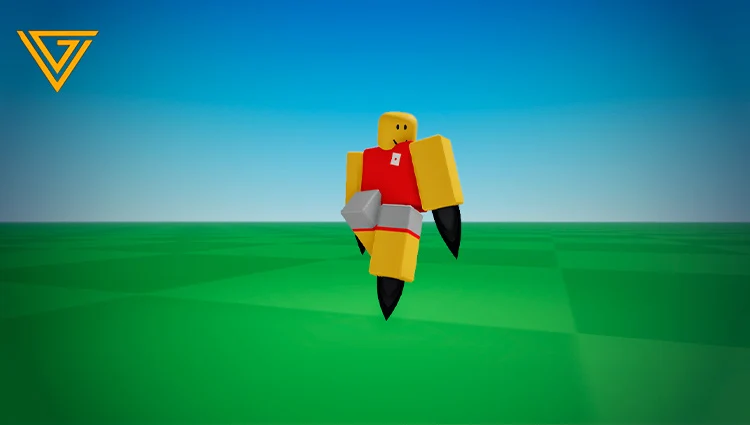
If you want an even more eye-catching Roblox avatar setup, you can make your character look like it's flying with rocket boosters, giving you that Iron Man-style look.
To pull this off, you only need two main items:
- Jet Boosters
- A compatible Jet Boosters animation
Step 1: Find the Jet Boosters
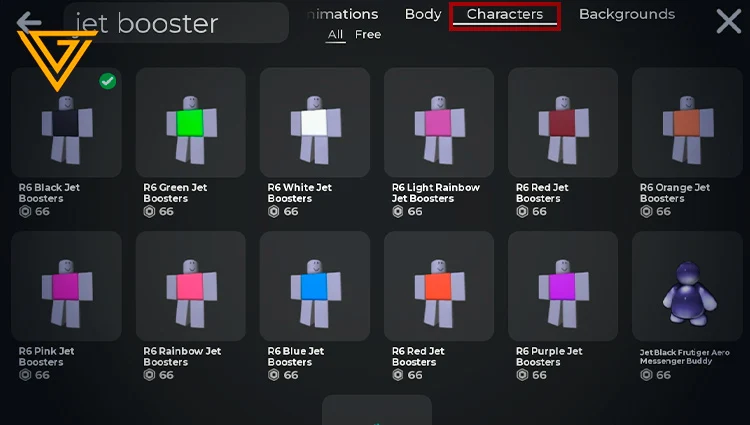
In the catalog, head to the Characters tab and search for Jet Boosters.
The different versions mainly change the flame color coming from the boosters, so you can pick whichever one matches your avatar or personal style.
Step 2: Equip the Jet Boosters Animation
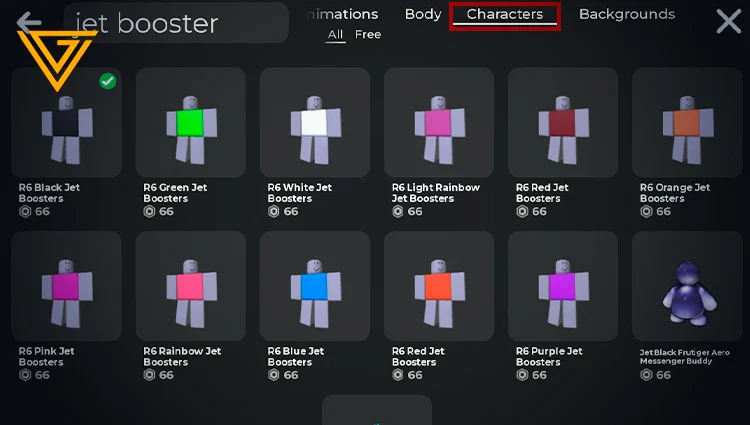
Next, switch over to the Animations section and search for the corresponding Jet Boosters animation.
The animation changes your character's body position, moving the arms and legs into a pose that fits the rocket boosters much better.
You'll find several different poses available, so this part is completely up to you. Try them out and pick the one that looks best with your avatar and the booster setup.
How to Become a Walking Tornado in Roblox
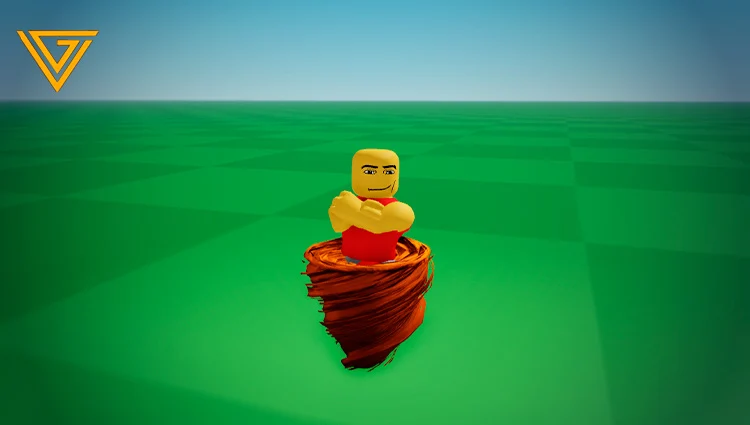
Another GOAT-tier avatar setup lets you turn the lower half of your character into a tornado, giving you a look that’s surprisingly close to a genie.
To build it, you’ll need two things:
- A Tornado animation
- A Waist accessory that creates the tornado effect
Step 1: Equip the Tornado Animation
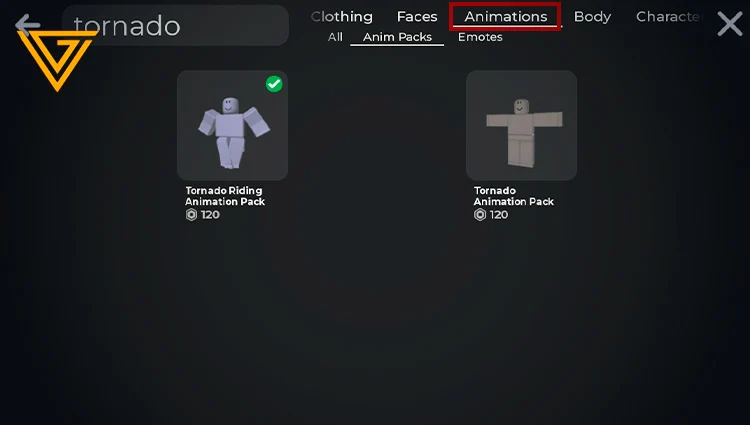
Start by searching for Tornado in the catalog and equip the first animation you find.
However, the animation alone won’t create the full effect. You’ll need an additional accessory to complete the setup.
Step 2: Add the Waist Accessory
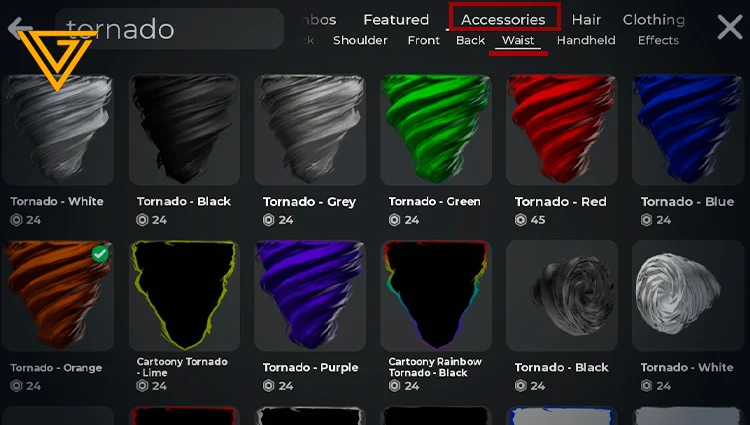
Next, head over to the Accessories section and open the Waist category.
From there, you’ll find several tornado-style accessories to choose from. Pick whichever one fits your avatar or personal style best.
Once you combine the Tornado animation with the right Waist accessory, the lower half of your character gets wrapped in a tornado effect.
The end result gives your avatar a pretty unique genie-like appearance, making this one of the more ridiculous but genuinely cool Roblox avatar setups you can try.
Get Robux easily at a great price fast, simple, and hassle-free Check Now!
How to Create a Mini Version of Your Roblox Avatar
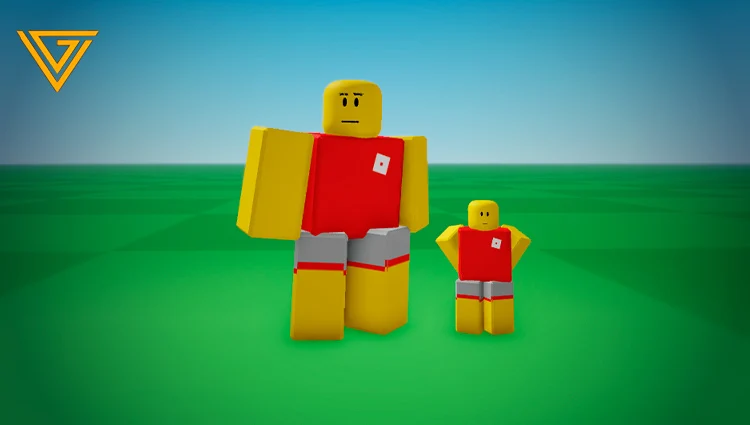
One of the coolest avatar setups you can create is a miniature version of your own character that follows you around while you play.
To make this work, you need to combine two main items:
- A Character
- An Animation
Both use the same name, so simply search for “Mini Me” and check both the Characters and Animations tabs.
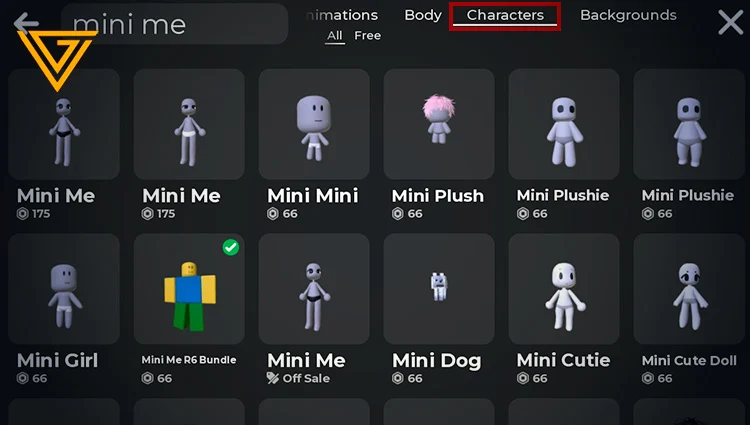
The Mini Me character creates the small version of your avatar, while the Mini Me animation controls how it moves and behaves.
Can You Change How Your Mini Me Moves?
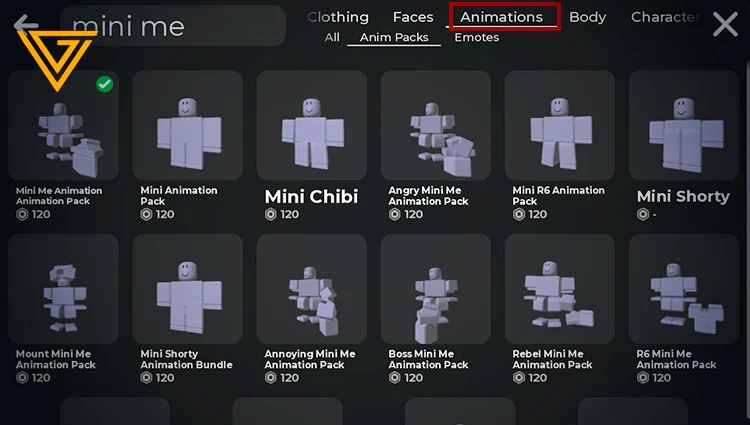
Yes! One of the best parts of this setup is that you can experiment with different Mini Me animations to change how your miniature clone moves.
Simply browse the available Mini Me animations and equip whichever one matches your preferred style.
Important: You Need Both Items
The Mini Me character and animation are designed to work together. If you remove either one, the setup can bug out and parts of the avatar may disappear or stop working correctly.
How to Get Four Arms in Roblox
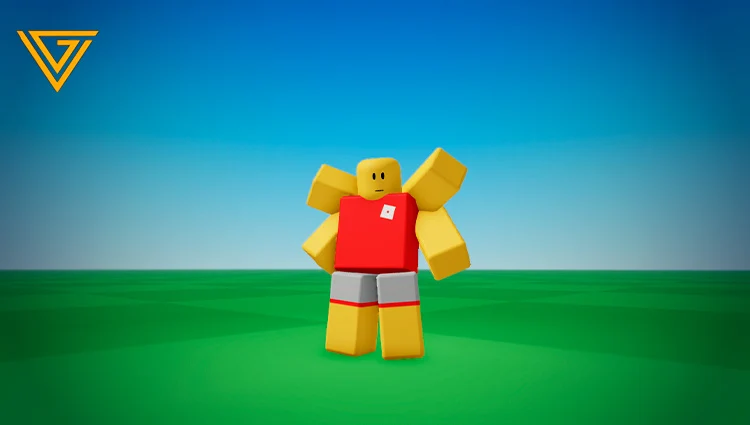
Want to make your Roblox avatar look completely different? This setup lets you create a four-armed character by combining a specific animation pack with a compatible character.
It’s especially useful if you’re trying to recreate characters with multiple arms, such as Four Arms from Ben 10 or Sukuna.
Step 1: Search for “Four Arms”
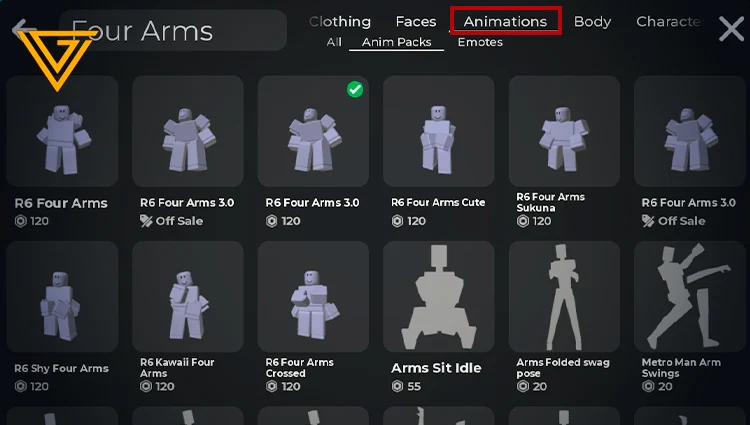
Open the catalog and search for Four Arms in the Animations tab.
You’ll find several animation packs that position the extra arms in different ways, so the best choice comes down to the look you want for your avatar.
Step 2: Complete the Four-Armed Avatar
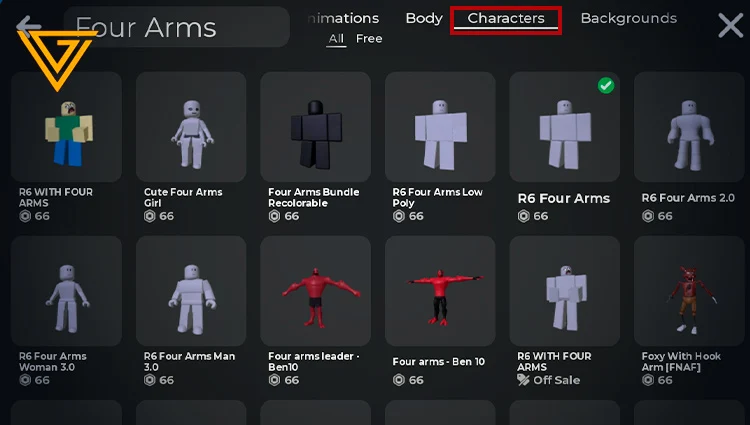
If you equip the animation by itself, your avatar may look completely bugged or partially broken.
To fix this, keep “Four Arms” in the search bar and switch over to the Characters section.
Choose one of the compatible characters from the results while keeping the Four Arms animation equipped.
Once you equip the right character, the setup should come together and you’ll see your avatar with four fully visible arms.
How to Pilot a Fighter Plane in Roblox
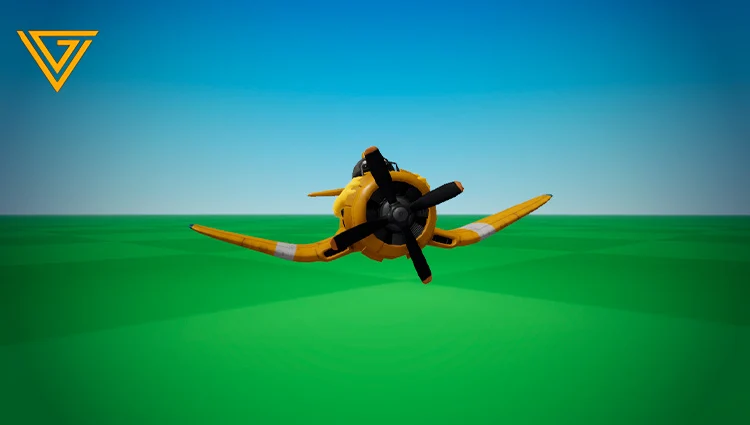
This is one of the most eye-catching avatar setups in the guide: you can turn your character into something that looks like a fighter plane pilot by combining a specific animation with a few matching accessories.
The setup is straightforward, but the Biplane animation alone won't complete the look. You'll need to add the corresponding aircraft accessories afterward.
Step 1: Find the Biplane Animation
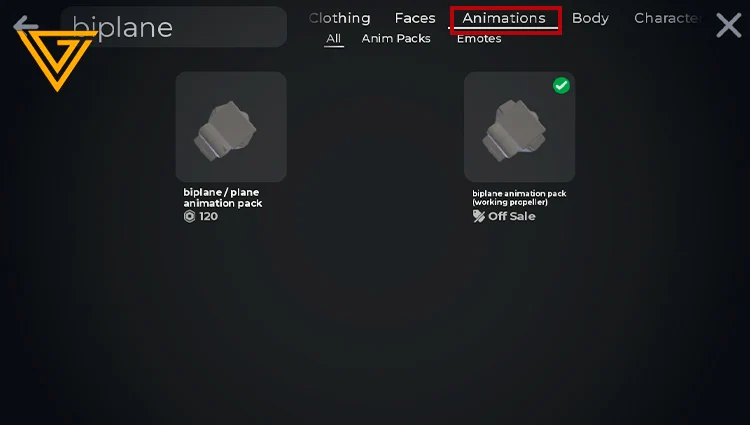
Open the catalog, go to the Animations section, and search for:
Biplane
Equip the corresponding animation.
At first, the result may look pretty weird because the animation doesn't include all the visual elements needed to complete the aircraft setup.
That's why we need to add the plane accessories in the next step.
Step 2: Add the Biplane Accessories
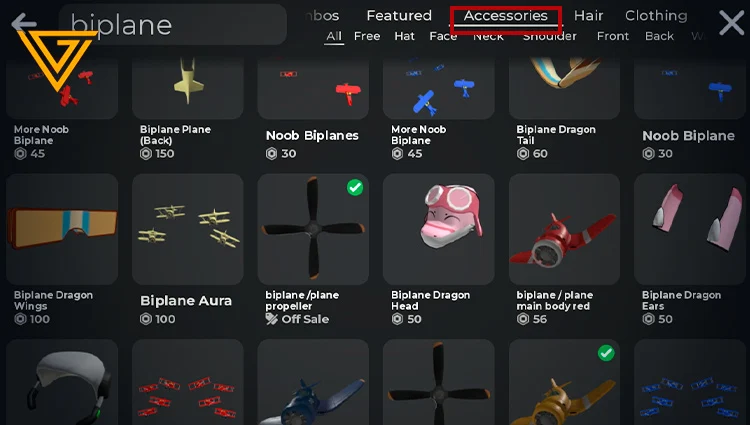
Head back to the Accessories tab and search for Biplane.
You'll find several versions of the aircraft, including different color variants:
🔵 Blue
🔴 Red
🟡 Yellow
Pick whichever version fits your avatar's color scheme or the style you're going for.
Once you've combined the Biplane animation with the matching aircraft accessory, your avatar will have the full fighter-plane-style setup.
 Arc Raiders
 Grow a Garden 2
 Steal a Brainrot
 Ea Fc 26
 OldSchool Runescape
 VV Ultimatum
 Minecraft Donut SMP
 Plants vs Brainrots
 Grow a Garden
 WarDogs
 RBL Rivals
 Sailor Piece
 Garden Tower Defense
 Animal Crossing: New Horizon
 Blade Ball
 Blox Fruits
 Attack on Titan Revolution
 Adopt Me
 Kick a Lucky Block
 Escape Tsunami for Brainrots
 Flyff Universe
 Type://Soul
 Dungeon Hunters
 Dress To Impress
 Marathon
 WoW Midnight
 RBL
RBL
 Murder Mystery 2
 Albion Online
 Toilet Tower Defense
 Jailbreak
 Pet Simulator 99
 WoW Mist Of Pandaria
 World of Warcraft Classic Era
 World Of Warcraft Classic Anniversary
 Minecraft
 New World
 Dofus
Dofus
 Lost Ark
 Dark and Darker
 Swtor
Swtor
 Diablo 4
 Maplestory
 Final Fantasy XIV
 Runescape 3
 Path Of Exile
 Blade And Soul Neo
 Path Of Exile 2
 Path of Exile 2: Runes of Aldur
 Star Citizen
 Elder Scrolls Online Gold
 Guild Wars 2
 Bubble Gum Simulator INFINITY Pets
 Anime Vanguards
 99 Nights in the Forest
 Fisch
Fisch
 Tower Defense Simulator
 Build a Zoo
 Dead Rails
 Blue Lock: Rivals
 Arise Crossover
 Eve Online
 Growtopia
 Fish It!
 Anime Eternal
 Pets Go!
 Anime Reborn
 Anime Defenders
 INK Game
 Hypershot
 All Star Tower Defense X
 Raise Animals
 Hunty Zombie
 Gym Star Simulator
 War Tycoon
 Grand Piece Online
 Volleyball Legends
 Basketball Zero
 Welcome to Bloxburg
 Anime Card Clash
 The Forge
 Brokheaven RP
 Da Hood
 Anime Fighting Simulator: Endless
 Ashes of Creation
 Tap Simulator
 Devil Hunter
 Baddies
 Jujutsu Infinite
 Break a Lucky Block
 Horse Race
 Chop Your Tree
 Creatures Of Sonaria
 Garden Horizons
 Survive Lava For Brainrots
 Bridger Western
 A Universal Time
 Abyss
Abyss
 Anime Warriors 3
 Delta Force
 Mini War
 Blox Strike
 Wizard Alchemy
 Sniper Arena
 Drag Drive Simulator
 Shindo Life
 Death Ball
 American Plains Mudding