

 5 MYSTERY GIFTS


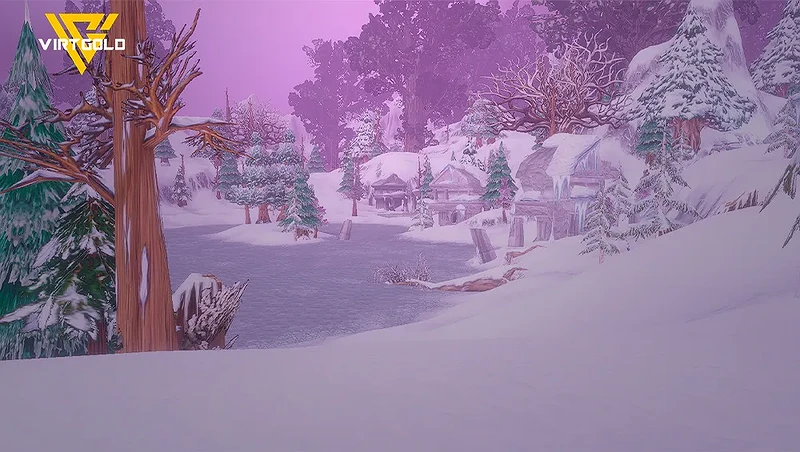
WoW Forever gives you several ways to change how the game looks without relying entirely on the default graphics preset. If the fog feels too heavy, the image looks soft, or the camera does not pull back far enough, console commands can give you more control. These changes are optional, and the best setup depends on the visual style you prefer.

WoW Forever Fog Is More Than a Visual Effect
One of the biggest discussions around WoW Forever current visual presentation is the amount of fog, lighting, and atmospheric effects used throughout the world.
Some players like it. Others feel there is simply too much of it.
That difference makes sense once you look at what the fog is doing. With atmospheric fog covering distant areas, the world feels deeper and larger because you cannot see every structure, mountain, or landmark immediately. Remove it, and the same location can suddenly look much smaller because the entire environment becomes visible.
That does not mean one configuration is objectively better. The fog changes the way distance is perceived, while removing it prioritizes visibility.
For players who prefer a cleaner, more direct view of the environment, there are several console commands worth testing.
Quick Comparison of the Available Commands
| Setting | Command | What It Changes | Best For |
|---|---|---|---|
| Sharpening | /console set ResampleAlwaysSharpen 1 |
Makes textures and details appear sharper | Players who dislike a soft image |
| Sharpening Off | /console set ResampleAlwaysSharpen 0 |
Returns to the previous sharpening state | Players who prefer the default look |
| Fog Off | /console volumeFog 0 |
Removes the environmental fog effect | Maximum visibility |
| Fog On | /console volumeFog 1 |
Restores the fog effect | Returning to the default atmospheric look |
| Camera Distance | /console cameraDistanceMaxZoomFactor 2.6 |
Allows the camera to pull farther away | PvP, raids and wider battlefield awareness |
The important part is that these are preference settings, not mandatory optimizations. Removing fog or increasing sharpness does not automatically make WoW Forever look better for everyone.
Make WoW Forever Look Sharper
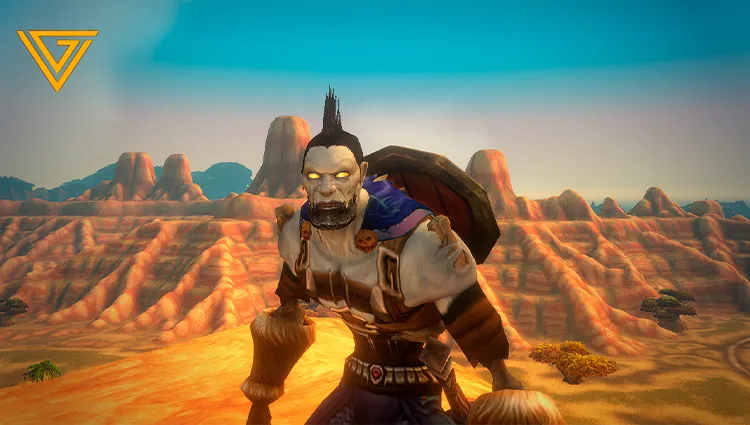
The first adjustment is aimed at players who feel the image looks slightly blurry or soft.
Use:
/console set ResampleAlwaysSharpen 1
After pressing Enter, the image becomes noticeably sharper.
The difference is particularly easy to spot on small environmental details such as leaves, trees, character models and shadows. Instead of the softer presentation, edges and textures become much more defined.
That can make the game look considerably cleaner.
How to turn sharpening off
If you prefer the original appearance, change the final value from 1 to 0:
/console set rasample Always Sharpen 0
For players who prefer to save time on the grind and focus on playing rather than spending hours working through every progression step, you can also explore WoW Forever services on VirtGold.
Remove Fog Completely
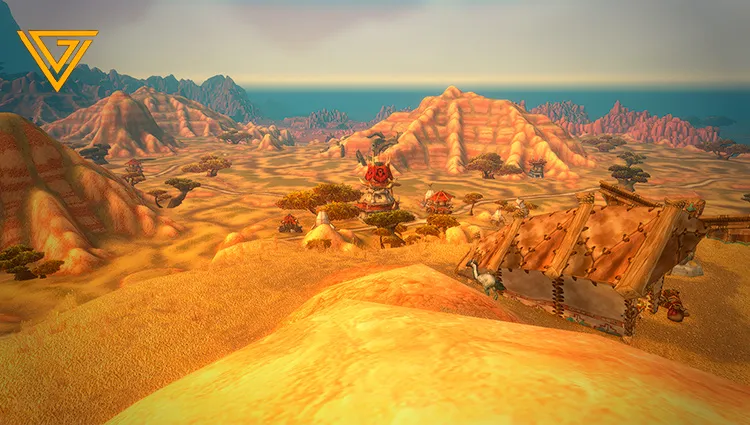
If sharpening is not your main concern and the real problem is the atmospheric fog, WoW Forever also allows you to disable it.
Enter:
/console volumetricfog 0
The environmental fog disappears, giving you a much clearer view of the surrounding world.
The difference is immediate. Areas that previously faded into the distance become visible, and landmarks that were partially hidden by atmospheric effects can stand out much more clearly.
Restore the fog
If the fog-free look is too clean for your taste, simply switch it back on:
/console volumetricfog 1
This restores the fog effect.
For players who like the original atmosphere but find it slightly excessive, there is an obvious limitation: this particular toggle is essentially an on/off adjustment rather than a simple slider for reducing the effect.
Why Does WoW Forever Use So Much Fog?
The fog is not simply there to make the game look blurry.
Atmospheric effects help create depth and distance.
Imagine looking across a large area with no fog at all. If you can clearly see every distant building and landmark, everything appears relatively close together. Add atmospheric fog and those same objects appear farther away.
That is one reason a fog-heavy presentation can make a zone feel larger.
It also changes the mood of the environment. Lighting, shadows and fog work together to create a more atmospheric world rather than presenting every object with the same visual clarity.
Players who want a more classic-looking presentation may therefore prefer reducing or removing these effects, while players who enjoy the added atmosphere may want to keep them enabled.
Neither approach needs to be treated as the "correct" way to play.
Increase the Maximum Camera Distance
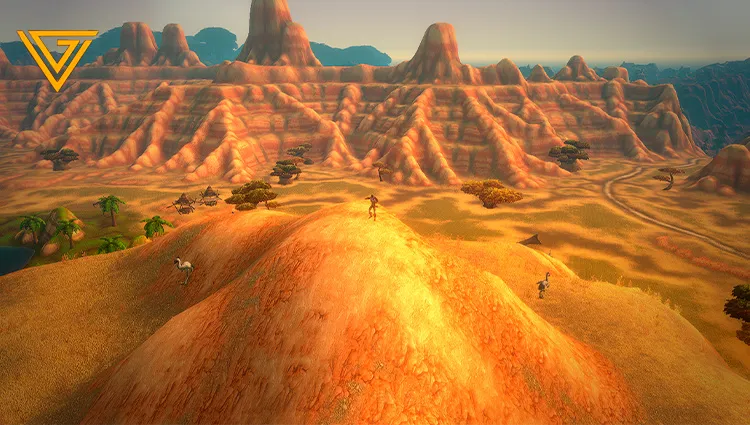
Another useful adjustment has nothing to do with fog.
It changes how far you can pull the camera away from your character.
Use:
/console cameraDistanceMaxZoomFactor 2.6
This increases the maximum camera distance and allows your character to occupy less of the screen while revealing more of the surrounding environment.
That extra field of view can be particularly useful during PvP and raids, where seeing what is happening around your character matters more than having a close-up view.

 Arc Raiders
 Grow a Garden 2
 Steal a Brainrot
 EA FC 27
 WoW Forever
 OldSchool Runescape
 VV Ultimatum
 Minecraft Donut SMP
 Plants vs Brainrots
 Grow a Garden
 WarDogs
 RBL Rivals
 Sailor Piece
 Garden Tower Defense
 Animal Crossing: New Horizon
 Blade Ball
 Blox Fruits
 Attack on Titan Revolution
 Adopt Me
 Kick a Lucky Block
 Escape Tsunami for Brainrots
 Flyff Universe
 Type://Soul
 Dungeon Hunters
 Dress To Impress
 Marathon
 WoW Midnight
 RBL
RBL
 Murder Mystery 2
 Albion Online
 Toilet Tower Defense
 Jailbreak
 Pet Simulator 99
 WoW Mist Of Pandaria
 World of Warcraft Classic Era
 World Of Warcraft Classic Anniversary
 Minecraft
 New World
 Dofus
Dofus
 Lost Ark
 Dark and Darker
 Swtor
Swtor
 Diablo 4
 Maplestory
 Final Fantasy XIV
 Runescape 3
 Path Of Exile
 Blade And Soul Neo
 Path Of Exile 2
 Path of Exile 2: Runes of Aldur
 Star Citizen
 Elder Scrolls Online Gold
 Guild Wars 2
 Bubble Gum Simulator INFINITY Pets
 Anime Vanguards
 99 Nights in the Forest
 Fisch
Fisch
 Tower Defense Simulator
 Build a Zoo
 Dead Rails
 Blue Lock: Rivals
 Arise Crossover
 Eve Online
 Growtopia
 Fish It!
 Anime Eternal
 Pets Go!
 Anime Reborn
 Anime Defenders
 INK Game
 Hypershot
 All Star Tower Defense X
 Raise Animals
 Hunty Zombie
 Gym Star Simulator
 War Tycoon
 Grand Piece Online
 Volleyball Legends
 Basketball Zero
 Welcome to Bloxburg
 Anime Card Clash
 The Forge
 Brokheaven RP
 Da Hood
 Anime Fighting Simulator: Endless
 Ashes of Creation
 Tap Simulator
 Devil Hunter
 Baddies
 Jujutsu Infinite
 Break a Lucky Block
 Horse Race
 Chop Your Tree
 Creatures Of Sonaria
 Garden Horizons
 Survive Lava For Brainrots
 Bridger Western
 A Universal Time
 Abyss
Abyss
 Anime Warriors 3
 Delta Force
 Mini War
 Blox Strike
 Wizard Alchemy
 Sniper Arena
 Drag Drive Simulator
 Shindo Life
 Death Ball
 American Plains Mudding
 AION 2
 Steal an Egg
 +1 Speed Keyboard Escape